Ubuntu 26.04 LTS on Apple Silicon with Umut77 Ubuntu 26.04 LTS on Apple Silicon with Umut77
Learn how to set up Ubuntu 26.04 on Apple Silicon using UTM, a free and open-source virtualization tool.

Ubuntu now offers a native ARM desktop build! Perfect for Apple Silicon users who want to explore Linux, develop, or virtualise efficiently. In this guide, we'll walk through setting up Ubuntu 26.04 (Resolute Raccoon) LTS in a virtual machine using UTM, a free and open-source tool tailored for macOS.
Our previous article detailed how to set up Ubuntu Server with a desktop environment.
Requirements
- UTM: Version 4.7.5 or newer.
- Storage: Minimum 30 GB free space.
- ISO: Ubuntu 26.04 LTS Desktop (ARM64).
- Hardware: Apple Silicon (M1, M2, M3, M4, or M5).
UTM Download
Download UTM version 4.7.5 from the UTM GitHub releases page
The GitHub version is free to download. Alternatively, the Mac App Store version supports automatic updates and helps support the developers (paid).
Drag UTM to your Applications folder and launch it.
Ubuntu ISO Download
Download the Ubuntu 26.04 LTS ARM64 ISO (approx. 4.16 GB) from the Ubuntu website.
::media
source: https://thumbs.dreamstime.com/b/sample-jpeg-heartwarming-close-up-endearing-small-mouse-happily-munching-piece-cheese-357411130.jpg alt: Aegis Authenticator logo
::
- Ubuntu 26.04 (Resolute Raccoon) is the current long term service release or LTS, an official ARM desktop download for the first time. Released April 2026.
This guide will continue to be updated as Ubuntu progresses future versions. Some features or bugs may be solved in later versions we'll try our best to note down potential issues and workarounds.
UTM Configuration
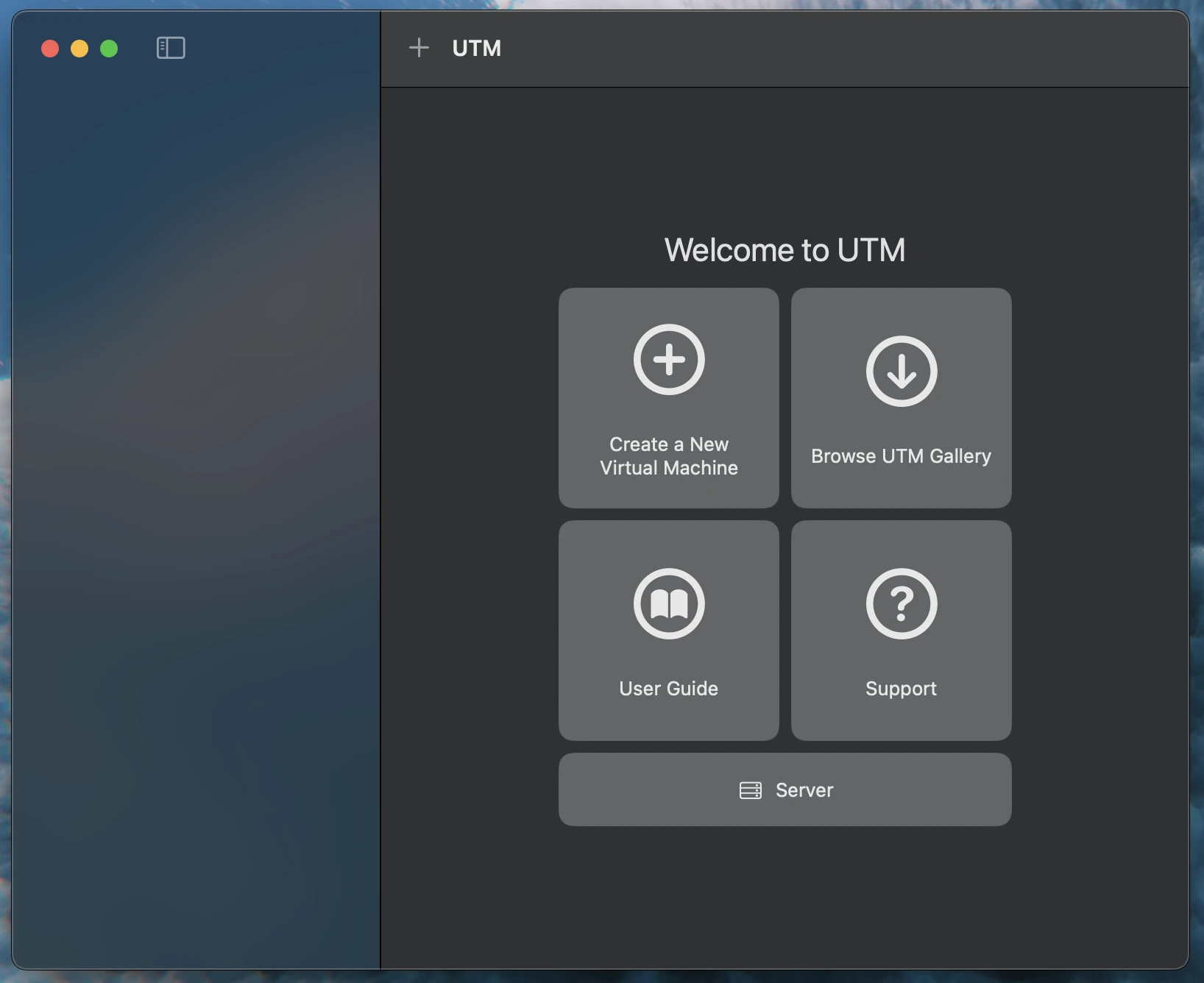
Open UTM and click the + (Plus) icon to create a new virtual machine.
::media
source: https://cdn.xanzhu.com/v1/m3-ubuntu/utm.webp alt: UTM application interface showing the main window with a plus icon to create a new virtual machine
::
Virtualise or Emulate
UTM offers two modes:
| Mode | Pros | Cons |
|---|---|---|
| Virtualise | Faster, native ARM support | Does not support x86 (Intel/AMD) architecture. |
| Emulate | Supports non-ARM systems | Slower, potential performance issues |
Select Virtualise to leverage Apple Silicon's efficiency.
Emulation is slower but supports older systems. Pre-built VMs are also available via the UTM Gallery
Operating System
Choose Linux
Hardware Settings
- Memory: Allocate at least 4096 MB (4 GB). If you have 16GB+ RAM on your Mac, 8GB (8192 MB) is recommended for a smoother experience.
- CPU: Leave at default for automatic core management.
Set RAM to half your device's available memory (default: 4096 MB or 4 GB). Leave CPU cores at the default for automatic management. Click Continue.
QEMU vs Apple Virtualization
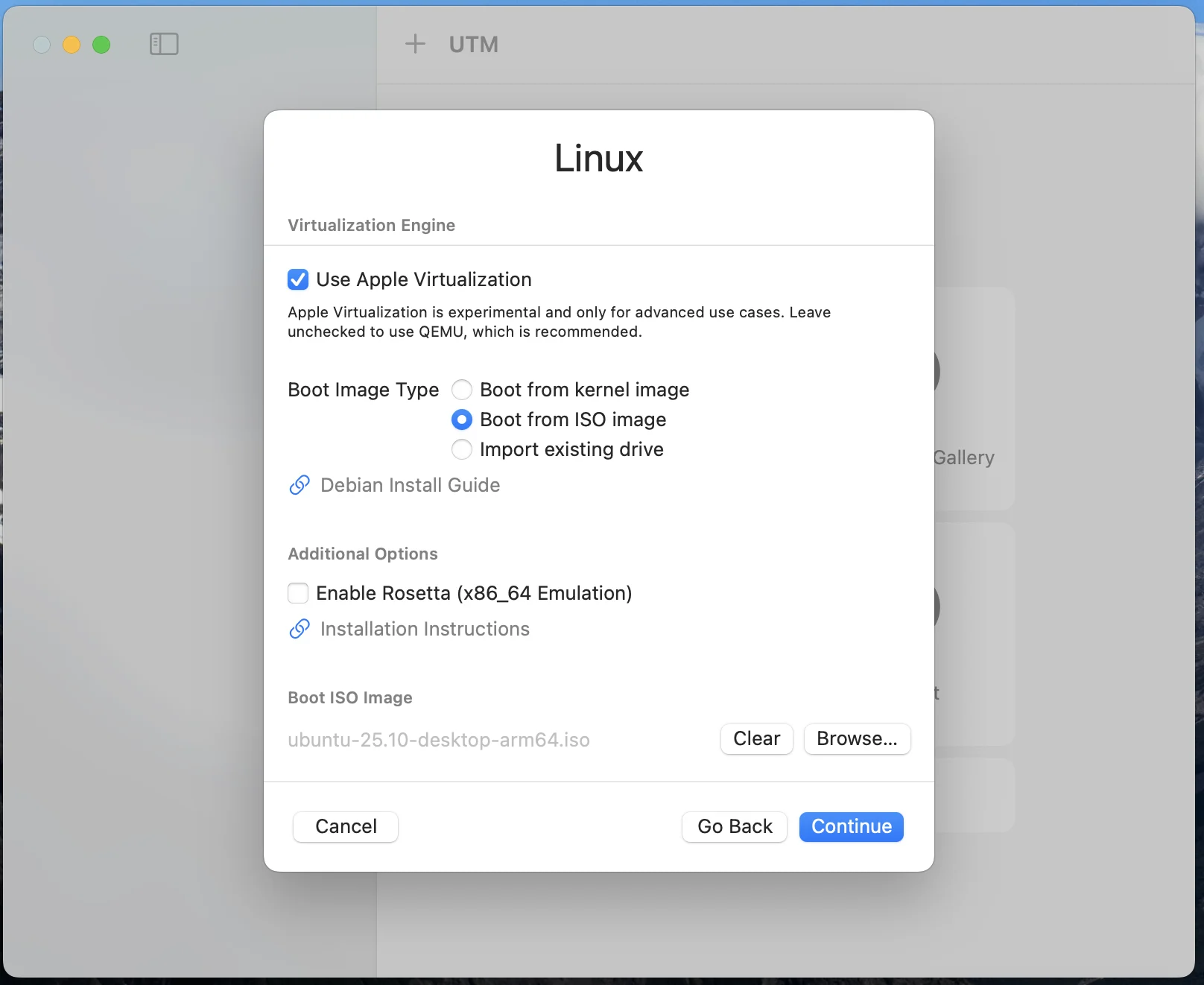
By default, UTM uses QEMU, which is flexible and widely compatible. On macOS 15+, enabling Apple Virtualization can improve performance and responsiveness for ARM guests like Ubuntu. If you run into compatibility issues, you can always switch back to QEMU.
::media
source: https://cdn.xanzhu.com/2026/utm-ubuntu/utm-config-virt.webp alt: UTM Configuration for Apple Virtualization
::
- Check Use Apple Virtualization (optional, recommended on macOS 15+).
- Boot Image Type: Boot from ISO
- Click Browse, select your downloaded Ubuntu ISO, and click Continue.
Storage
The default 64 GB is recommended. Ubuntu requires ~20 GB for the OS and basic apps; the rest is for your files.
Adjust as needed and click Continue
Shared Directory
Optionally, select a folder to share between your Mac and the VM by clicking Browse. Otherwise, click Continue.
Review the configuration summary, name the VM, and click Save.
Ubuntu Installation
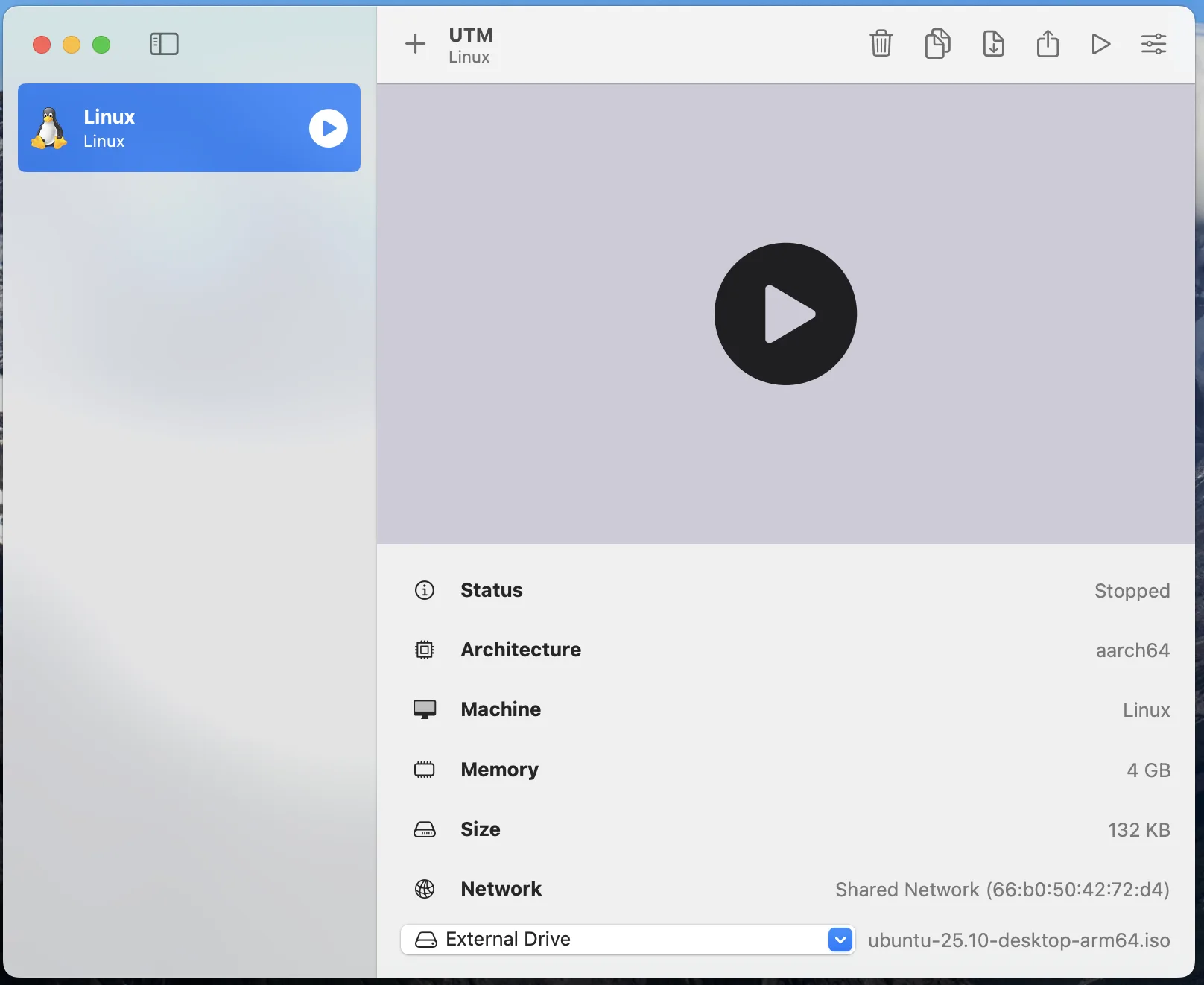
Click the Play button on your new VM to boot the installer.
::media
source: https://cdn.xanzhu.com/2026/utm-ubuntu/utm-default.webp alt: UTM Application completed Virtual Machine
::
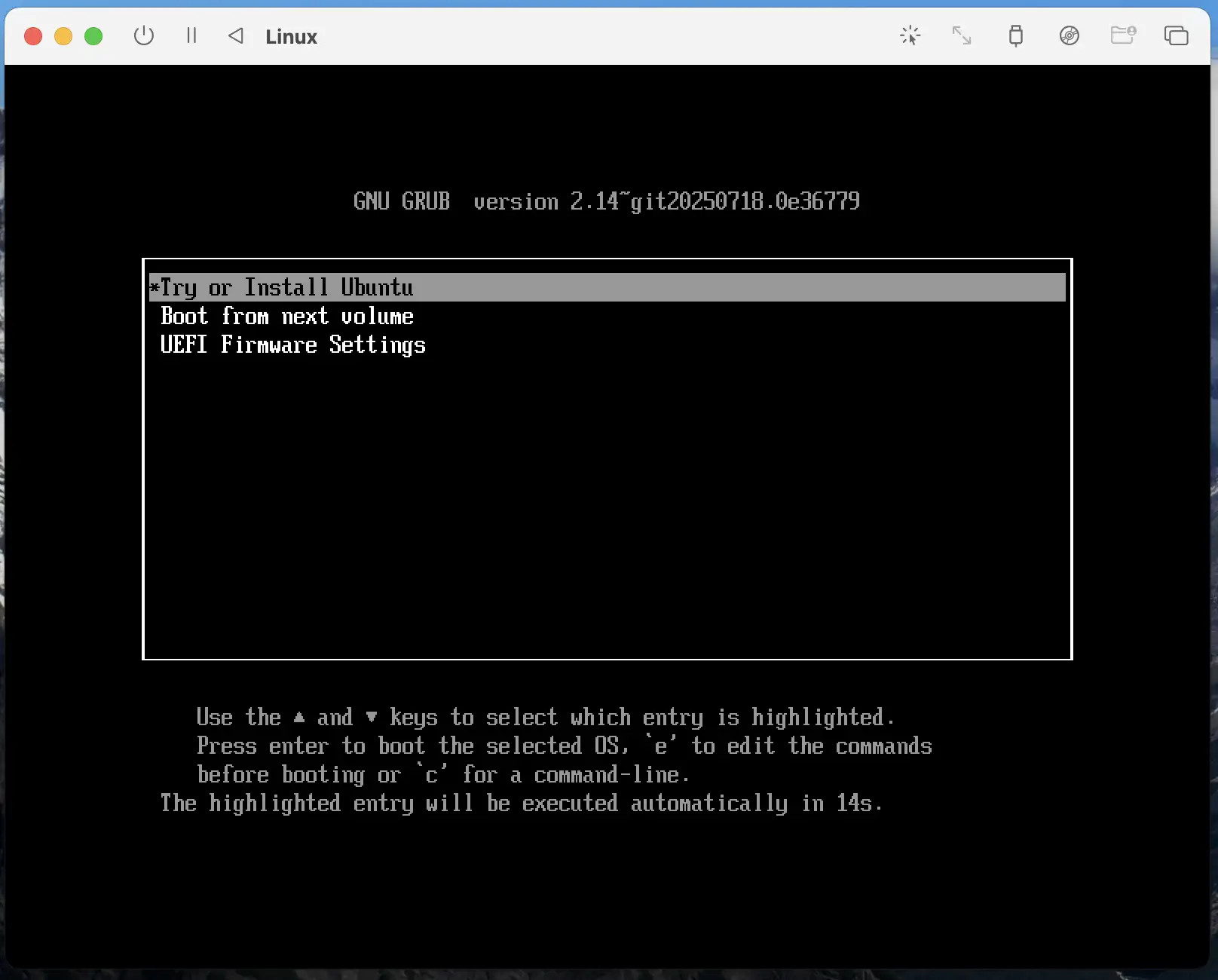
The Ubuntu setup begins automatically. Make sure you click inside the VM window so your keyboard input is captured.
GRUB menu: Use your arrow keys to select Try or Install Ubuntu and hit Enter.
::media
source: https://cdn.xanzhu.com/2026/utm-ubuntu/utm-grub-boot.webp alt: Ubuntu Virtual Machine Installation selection
::
The installer may download additional components during setup. Display scaling may vary slightly with Apple Virtualization.
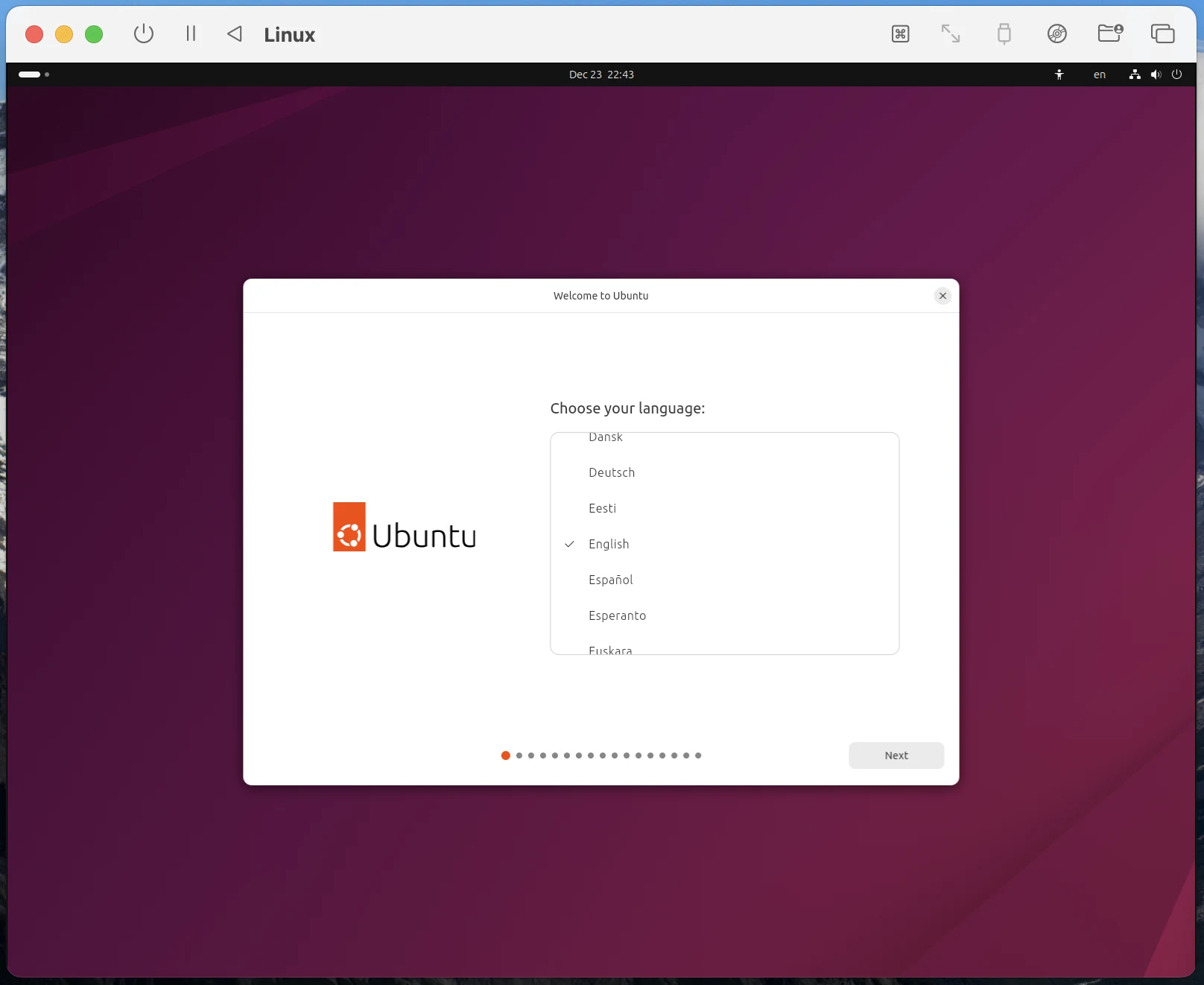
You'll arrive at the Ubuntu welcome screen:
::media
source: https://cdn.xanzhu.com/2026/utm-ubuntu/os-welcome-setup.webp alt: Ubuntu welcome screen after booting
::
- Choose your language and click Next.
- Adjust accessibility options as needed and click Next.
- Select keyboard layout and click Next.
- Connect to the internet, ensure Use Wired Connection is selected (UTM shares your Mac's internet connection), then click Next.
- Choose Install Ubuntu and click Next.
- Select Interactive installation and click Next.
- Select Default selection for apps and click Next.
- Optionally, enable proprietary software installation (can be added later). Click Next.
- Choose Erase disk and install Ubuntu and click Next.
- Choose whether to encrypt the file system — leave it off for now — and click Next
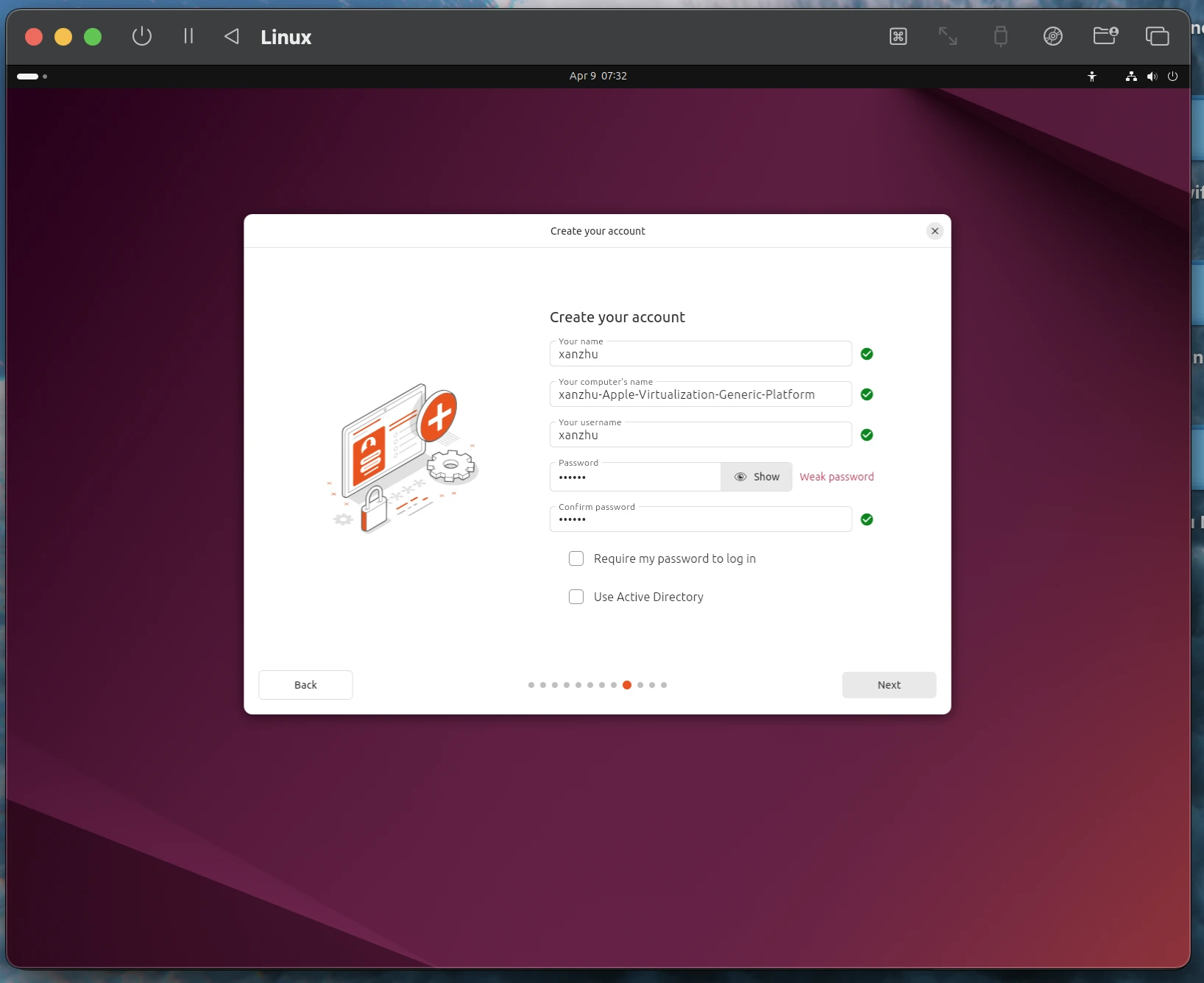
- Enter your name, computer name, username, and a password (e.g., “test”). Confirm the password and click Next.
::media
source: https://cdn.xanzhu.com/v1/m3-ubuntu/utm-ubuntu-account.webp alt: Ubuntu account creation showing sample values
::
- Select your time zone on the map and click Next.
- Review your choices and click Install.
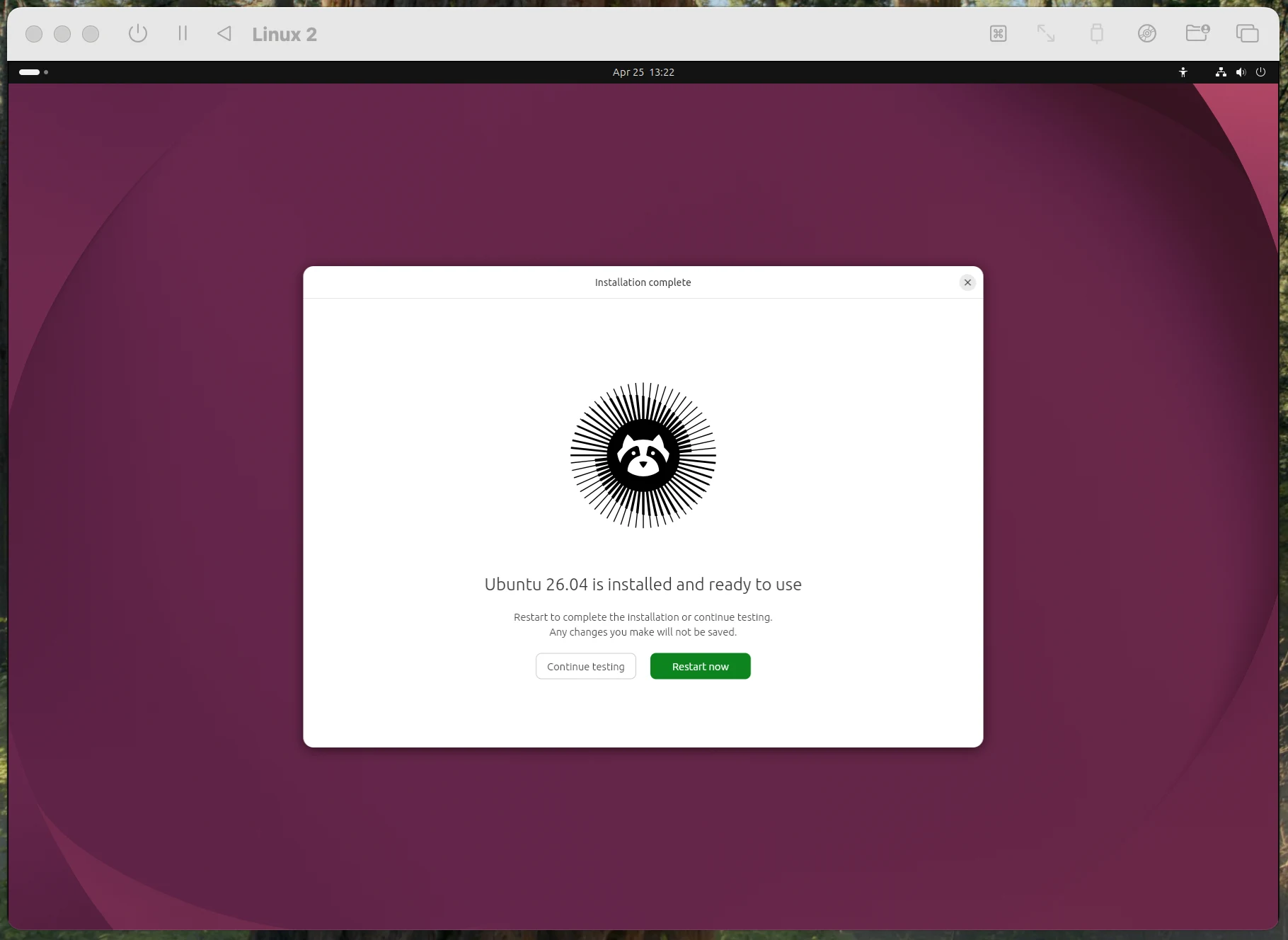
The installation will copy and configure files, which may take some time. When prompted, click Restart Now.
::media
source: https://cdn.xanzhu.com/2026/utm-ubuntu/os-restart-lts.webp alt: Ubuntu prompting user to restart
::
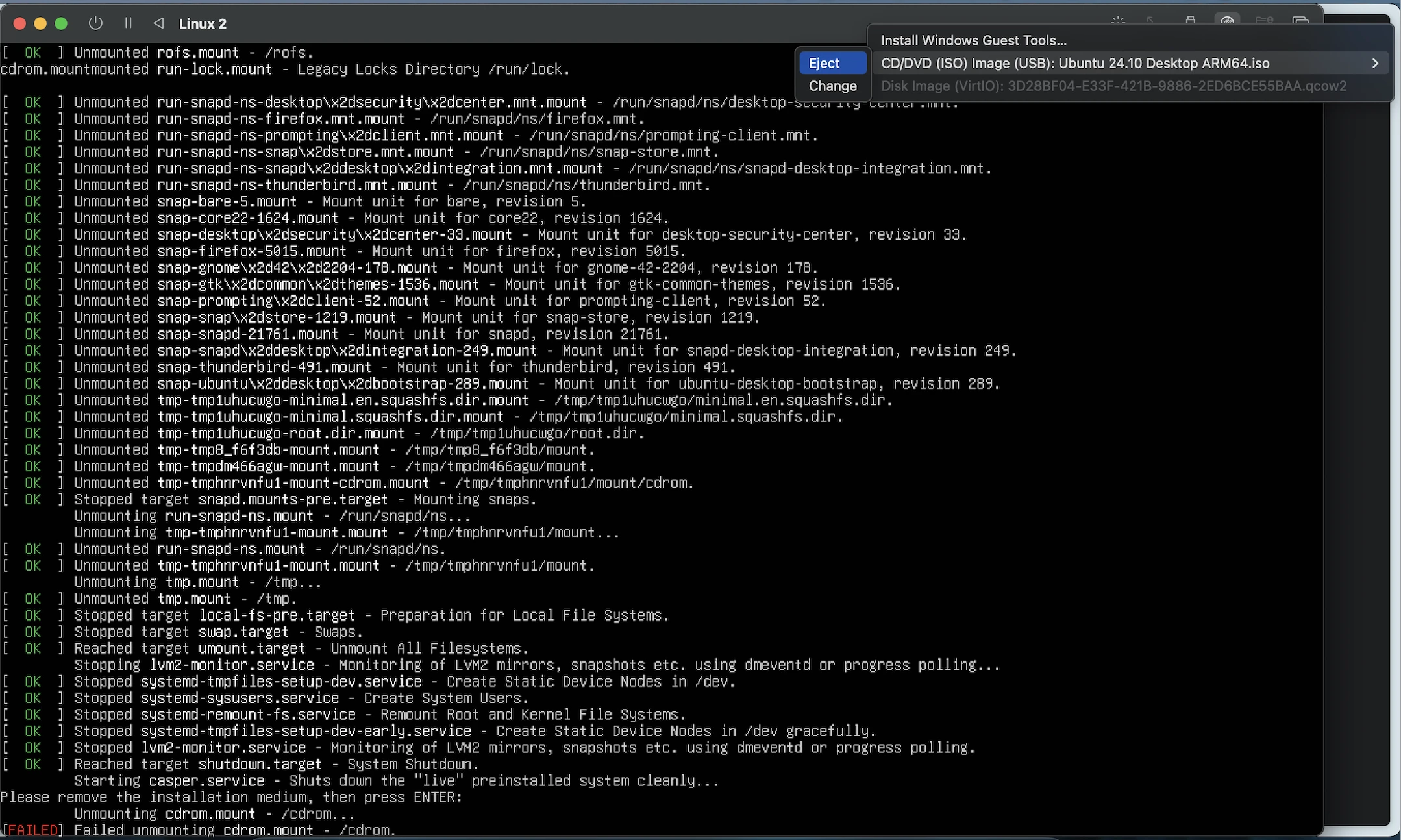
Eject the ISO file
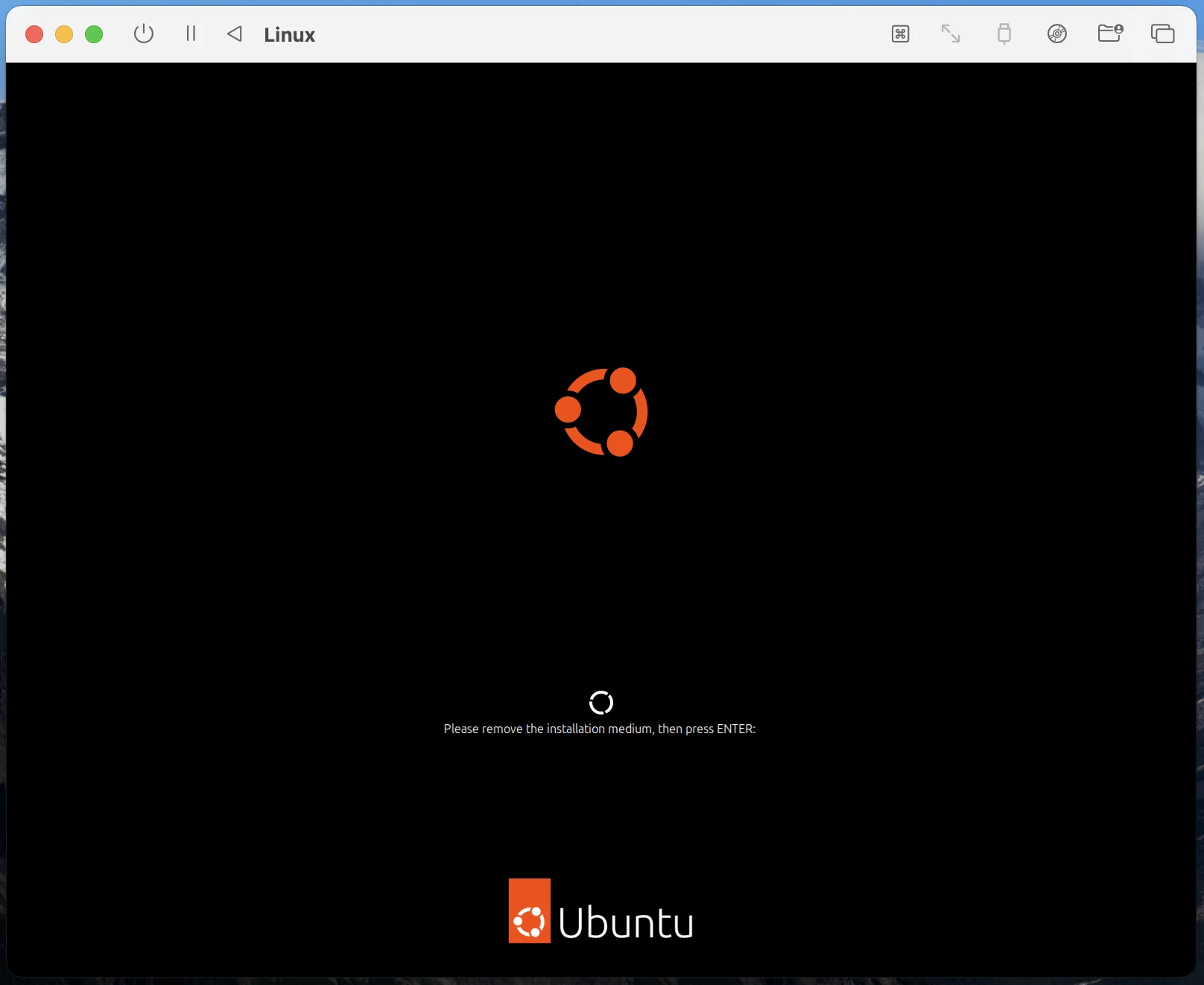
After reboot, Ubuntu may prompt you to remove the installation media. Eject the ISO in UTM, then press Enter to continue booting.
::media
source: https://cdn.xanzhu.com/v1/m3-ubuntu/utm-qemu-eject.webp alt: Ubuntu showing how visual of ejecting ISO
::
- Go to the CD/DVD icon in the UTM toolbar
- Hover over the second option and select Eject
- Click back in the VM window and press Enter
::media
source: https://cdn.xanzhu.com/2026/utm-ubuntu/os-eject-prompt.webp alt: Ubuntu prompting user to eject ISO and press enter
::
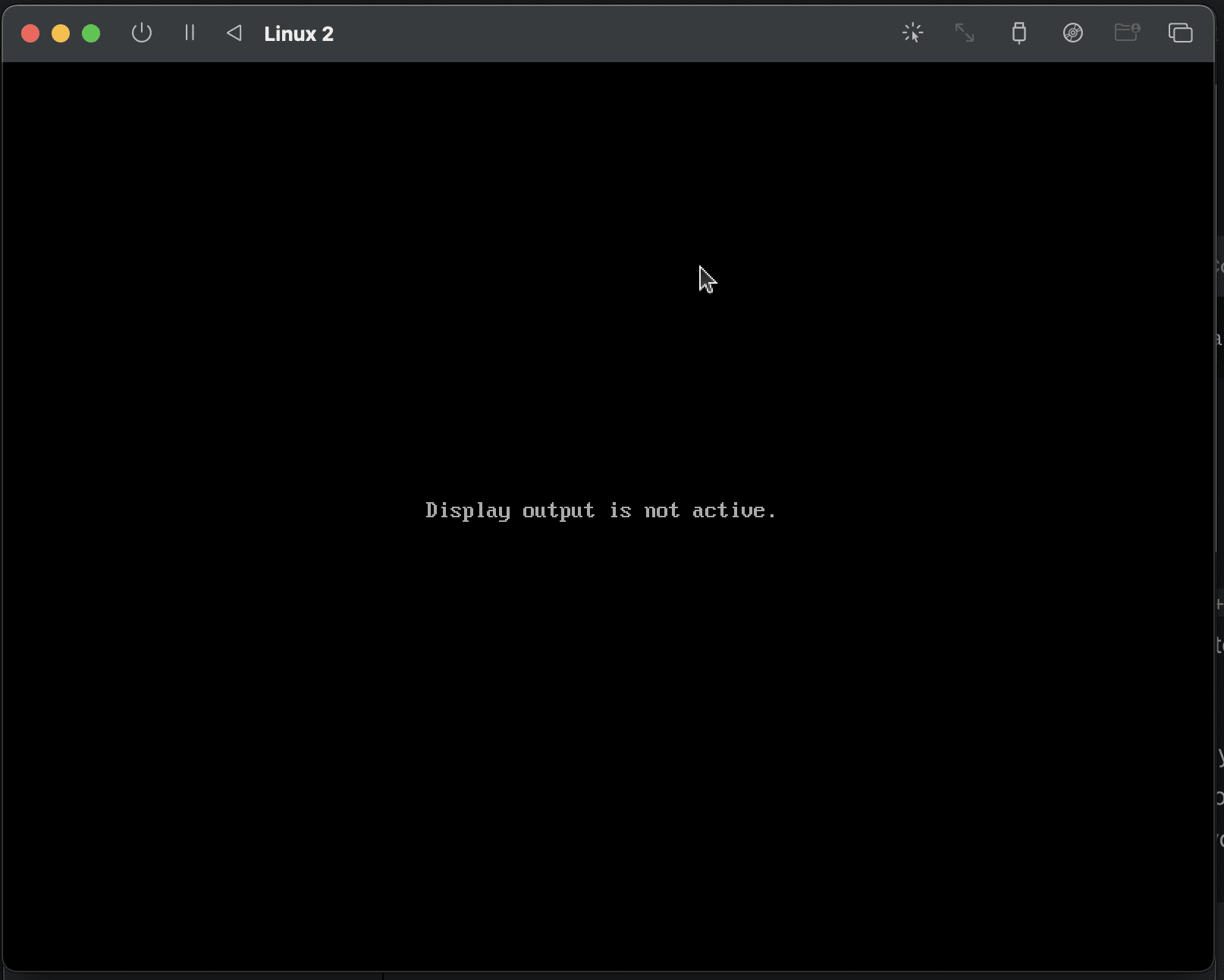
“Display output is not active” message may appear briefly when using QEMU. Wait 30 seconds to 1 minute for the desktop to load.
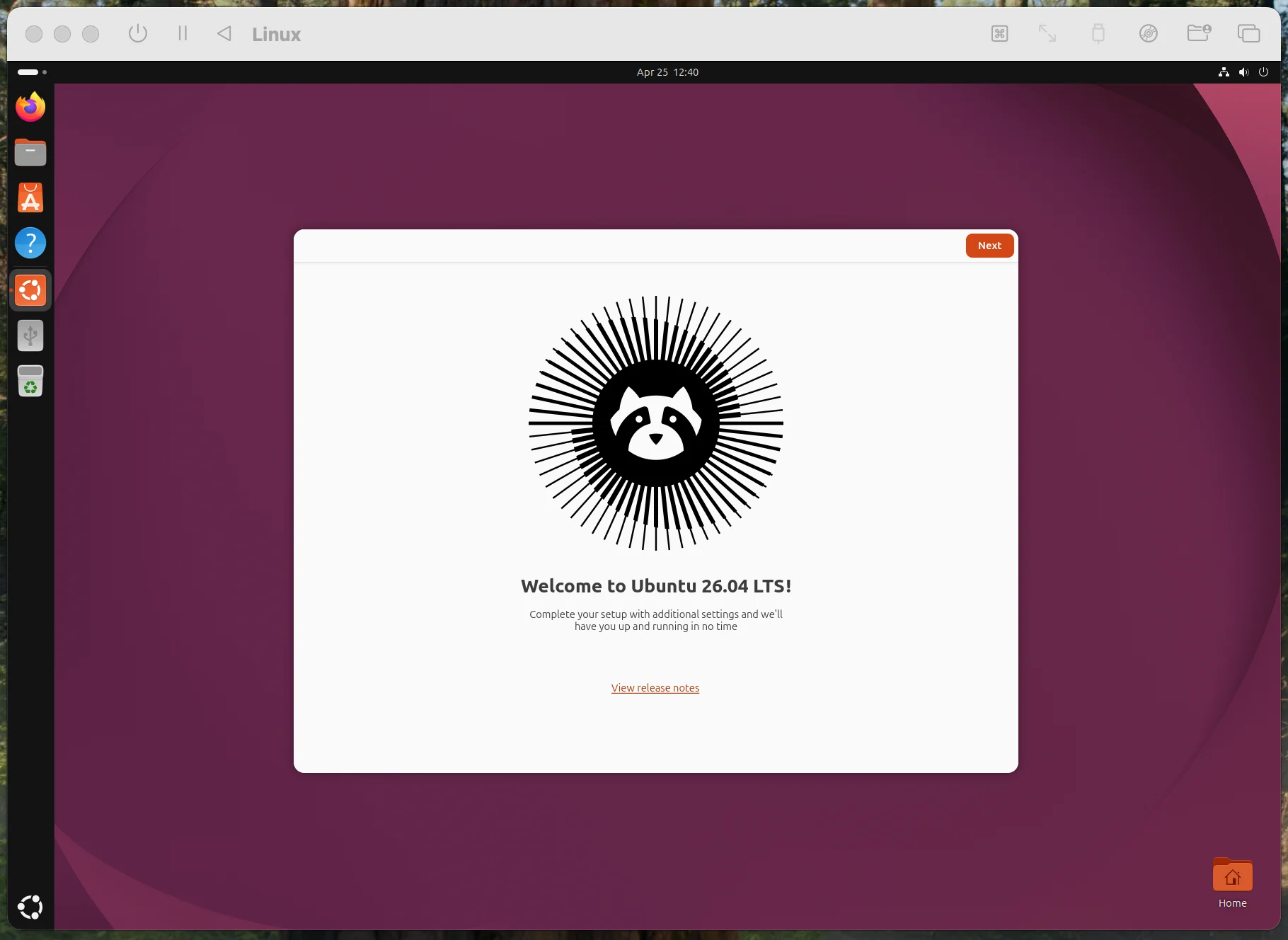
Once the desktop loads, you should see the following:
::media
source: https://cdn.xanzhu.com/2026/utm-ubuntu/os-welcome-lts.webp alt: Ubuntu desktop showing the welcome screen
::
- Select Next to continue.
- Set whether to share data to help improve Ubuntu, then select Next.
- Select Finish
The virtual machine is now ready to use. The next step is improving the display scaling.
Resolution
To enhance usability, adjust the display settings for better resolution.
Apple Virtualization
- Shut down the VM. If running (right-click and select Stop).
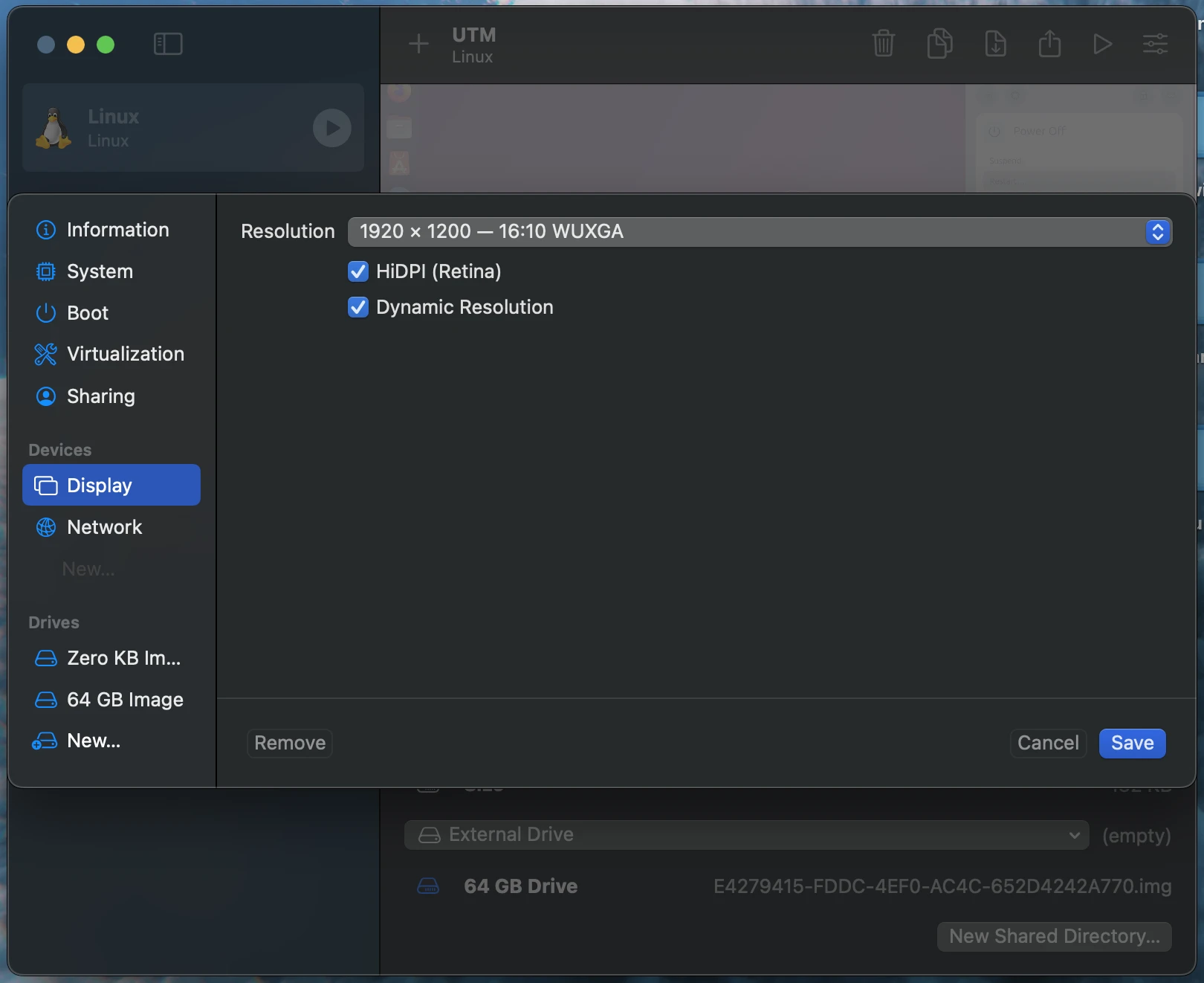
- Right-click the VM, select Edit, and go to Display.
- Enable HiDPI (Retina) and keep dynamic resolution enabled.
::media
source: https://cdn.xanzhu.com/v1/m3-ubuntu/utm-avirt-display.webp alt: UTM Configuration for Apple Virtualization display settings
::
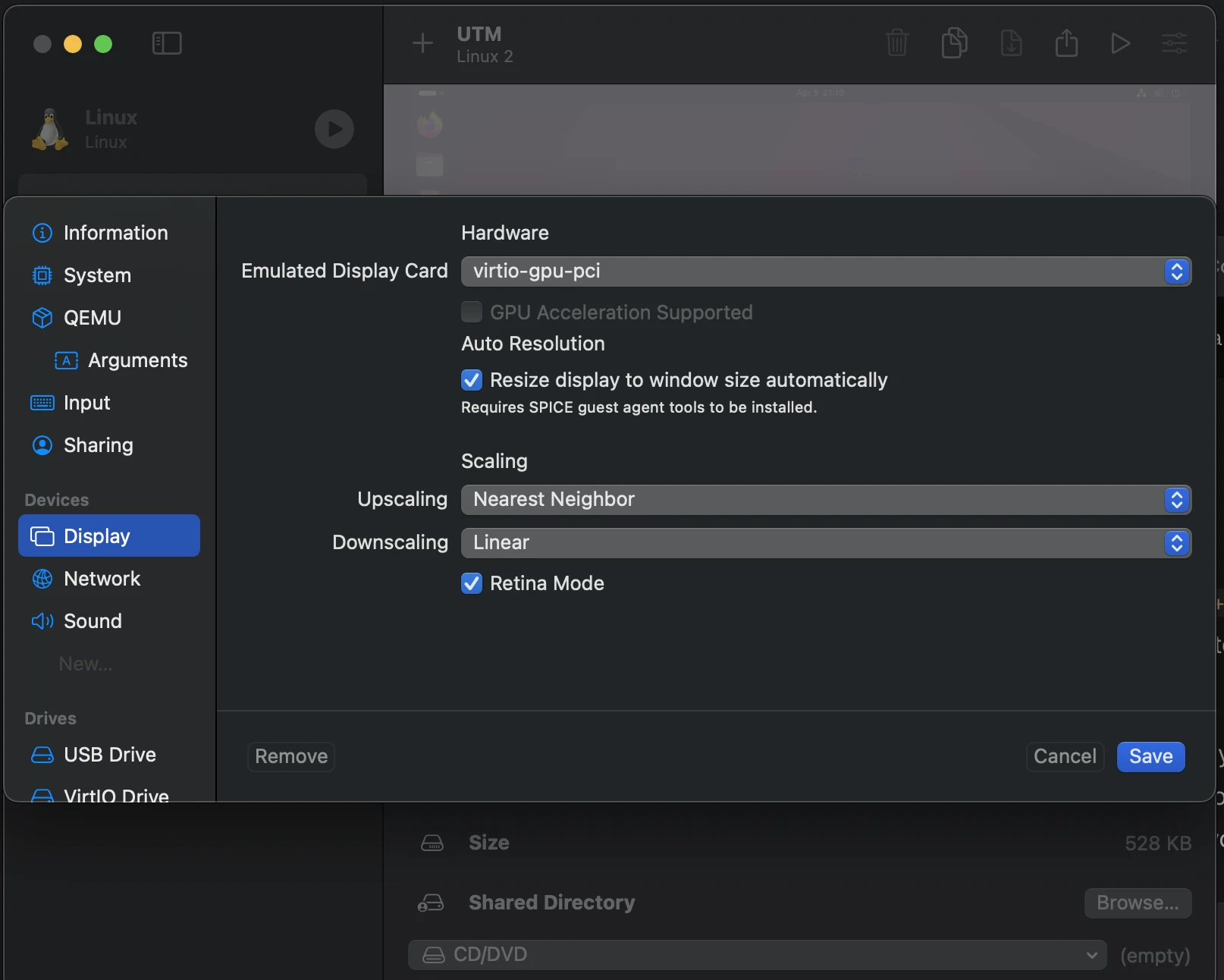
QEMU
- Stop the VM, edit it, and navigate to Display.
- Check Retina Mode to enable high-resolution scaling, click Save.
::media
source: https://cdn.xanzhu.com/v1/m3-ubuntu/utm-qemu-display-setting.webp alt: UTM Configuration for QEMU display settings
::
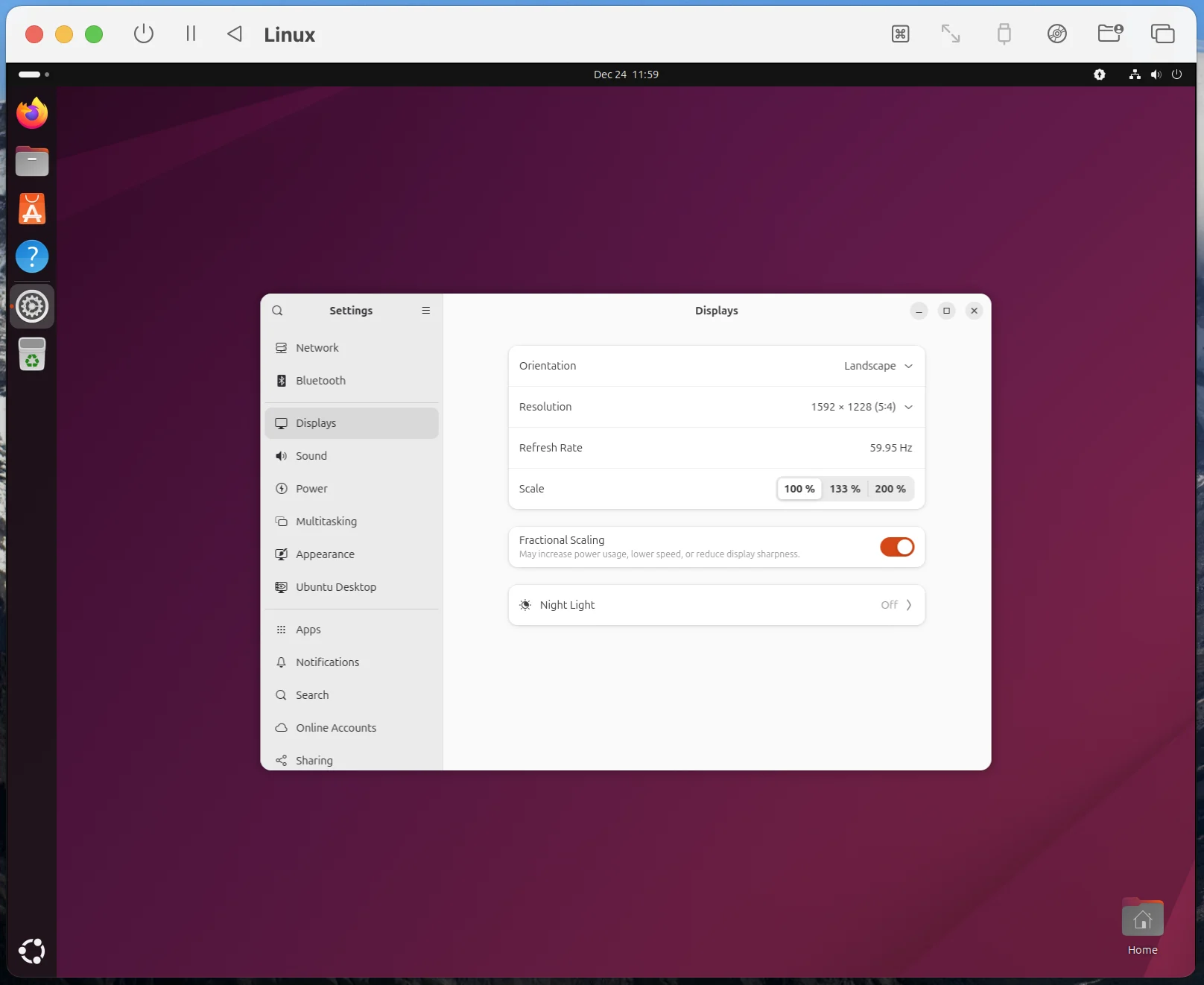
Boot the VM. The Ubuntu user interface may appear small.
- In Ubuntu, go to Settings, select Display.
- Set Scale to 200% and click Apply.
::media
source: https://cdn.xanzhu.com/2026/utm-ubuntu/os-setting-display.webp alt: Ubuntu display settings for high-resolution scaling
::
The desktop should now look crisp and properly scaled.
Software Updates
Finally, update Ubuntu's packages. Open the menu, select Software Updater, and install available updates to ensure optimal performance.
Alternatively open the Terminal and run:
sudo apt update && sudo apt upgrade -y
Doing this ensures you have the latest patches for the 26.04 release.
Note on 26.04 LTS: While Long Term Support (LTS) versions prioritise stability, running on Apple Silicon is an evolving target. Early adopters should expect minor bugs in the first few weeks.
Issues
"Display output is not active"
This common QEMU bug happens during the initial boot phase. If the screen stays black for more than 2 minutes, try resizing the UTM window slightly; this often forces the graphics driver to "wake up."
GitHub discussion suggests some ideas for workarounds.
::media
source: https://cdn.xanzhu.com/v1/m3-ubuntu/utm-qemu-bug.webp alt: UTM QEMU prompting user to wait for desktop to load known bug
::
Conclusion
That's it! You've now got Ubuntu 26.04 LTS running natively on Apple Silicon. Whether you're testing code, learning Linux, or just exploring, this VM setup gives you flexibility with solid performance.
If you found this guide helpful, consider checking out our other virtualization tips — or share this with a fellow Mac/Linux enthusiast!